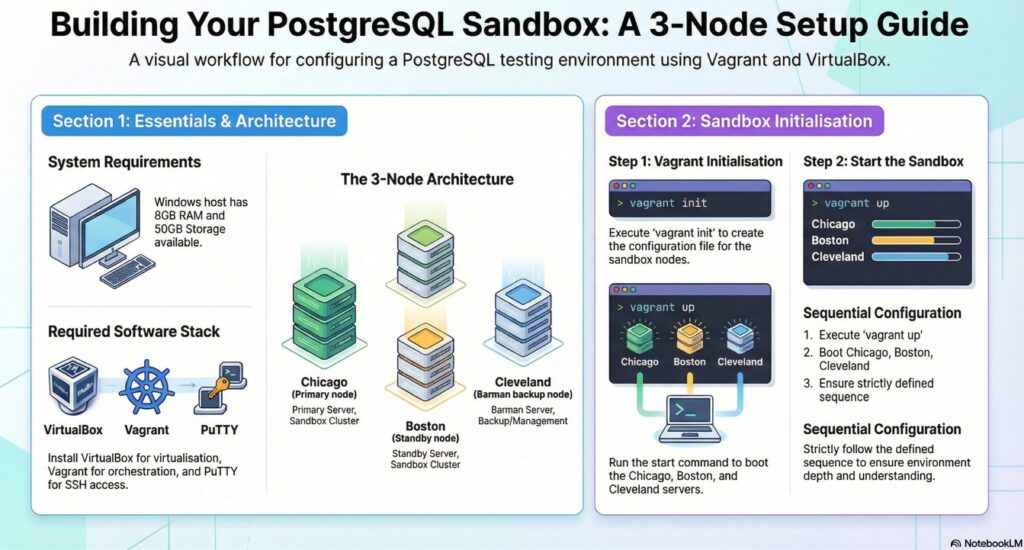
2.0.1 System requirement
System requirements:
Laptop : Windows
Processor:
RAM: minimum 8 GB
Storage: minimum 50 GB
2.0.2 Softwares to download
1 Install Oracle virtual box – Virtualbox
2 Install Vagrant – vagrant
3 Install putty – putty
2.0.3 Lab Setup Intro
a) OEL 9 – as OS for the sandbox
b) 3 Number of Sandboxes
—–b.1) chicago – primary database server (2 GB RAM)
—–b.2) boston – standby database server (2 GB RAM)
—–b.3) cleveland – backup and recovery manager server (1 GB RAM)
2.0.4 Initial preparation for vagrant file
After Installation of mentioned software as defined in step 2.1.1
Its time to create Vagrant config files to start the machines.
- a) create a directory in your windows folder
— example : i created a directory as : D:\sandboxes\postgres\pg-rpmgr-brmn
b) right click the directory name pg-rpmgr-brmn and select – Open in Terminal
—- this opens an windows powershell (command line)
example:
PS D:\sandboxes\postgres\pg-rpmgr-brmn
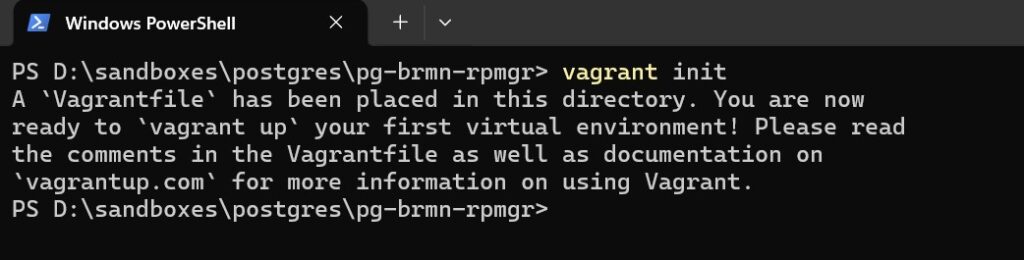
c) execute the command “vagrant init“
vagrant initexpand_for_screenshot (Vagrant init and copy to config.yaml)
Vagrant init
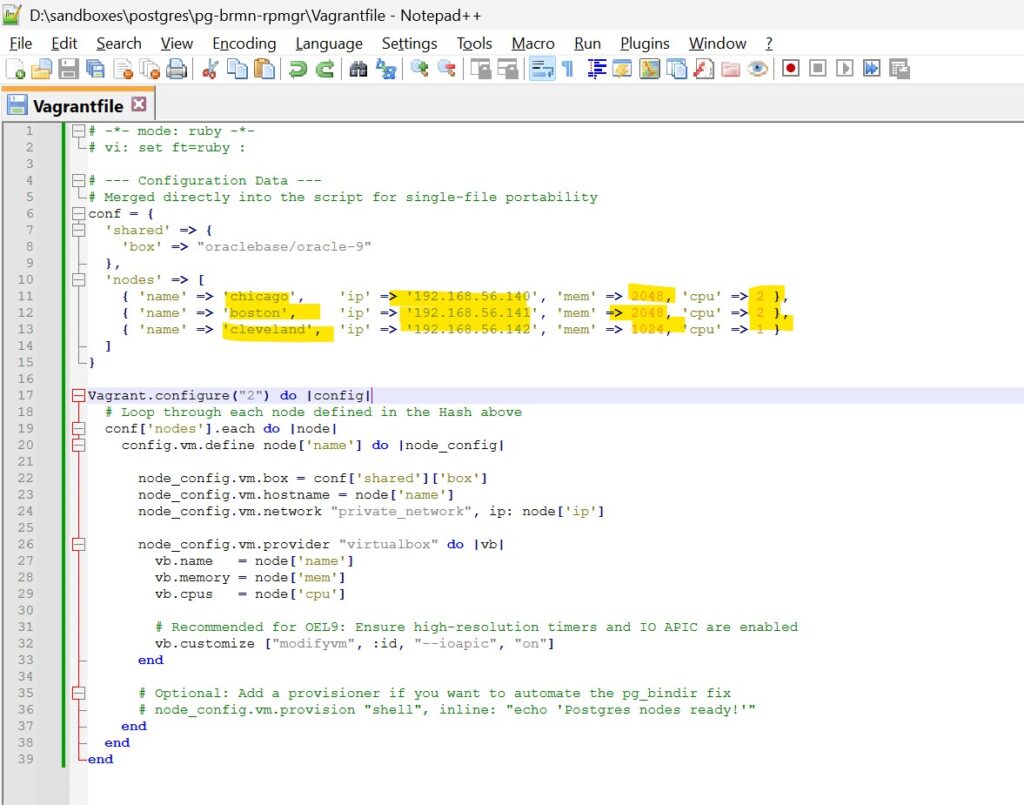
2.0.5 Edit the Vagrant files in notepad / notepad ++
expand_for_code (file to be edited in notepad / notepad++ )
Vagrantfile
# -*- mode: ruby -*-
# vi: set ft=ruby :

# --- Configuration Data ---
# Merged directly into the script for single-file portability
conf = {
  'shared' => {
    'box' => "oraclebase/oracle-9"
  },
  'nodes' => [
    { 'name' => 'chicago',    'ip' => '192.168.56.140', 'mem' => 2048, 'cpu' => 2 },
    { 'name' => 'boston',     'ip' => '192.168.56.141', 'mem' => 2048, 'cpu' => 2 },
    { 'name' => 'cleveland',  'ip' => '192.168.56.142', 'mem' => 1024, 'cpu' => 1 }
  ]
}

Vagrant.configure("2") do |config|
  # Loop through each node defined in the Hash above
  conf['nodes'].each do |node|
    config.vm.define node['name'] do |node_config|

      node_config.vm.box = conf['shared']['box']
      node_config.vm.hostname = node['name']
      node_config.vm.network "private_network", ip: node['ip']

      node_config.vm.provider "virtualbox" do |vb|
        vb.name   = node['name']
        vb.memory = node['mem']
        vb.cpus   = node['cpu']

        # Recommended for OEL9: Ensure high-resolution timers and IO APIC are enabled
        vb.customize ["modifyvm", :id, "--ioapic", "on"]
      end

      # Optional: Add a provisioner if you want to automate the pg_bindir fix
      # node_config.vm.provision "shell", inline: "echo 'Postgres nodes ready!'"
    end
  end
endexpand_for_screenshot_reference
Vagrantfile
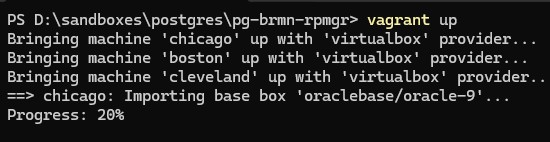
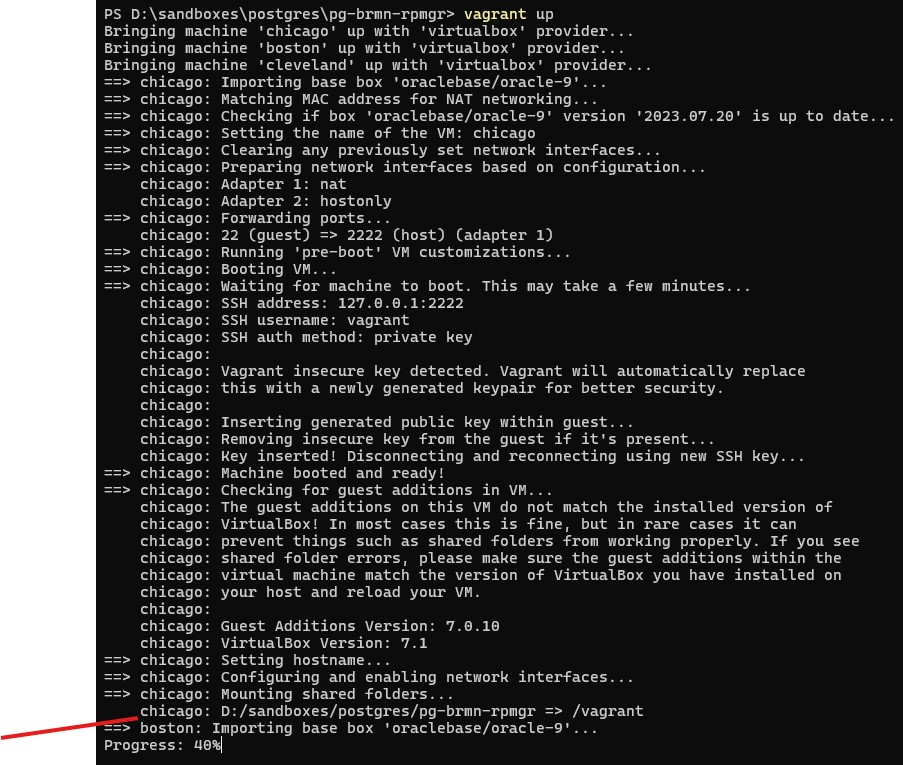
2.0.6 Startup the Vagrant machines
execute the command “vagrant up” in your power shell command line –
vagrant upexpand_for_screenshot_reference
vagrant up
2.0.7 Save the putty sessions
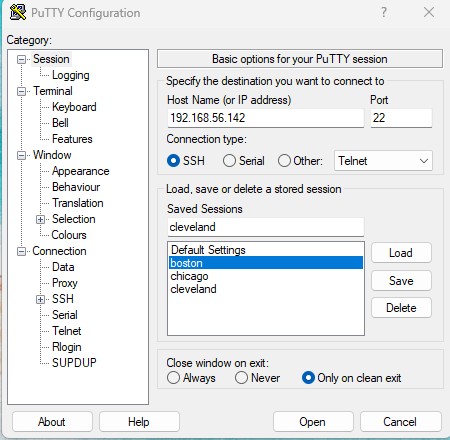
In putty session , save the session with appropriate IP addresses and hostnames accordingly
session_name: chicago, ip => 192.168.56.140
session_name: boston, ip => 192.168.56.141
session_name: cleveland, ip => 192.168.56.142
expand_for_screenshot_reference
save the sessions in putty
2.0.8 Login to all the 3 machines
username: vagrant
password: vagrant
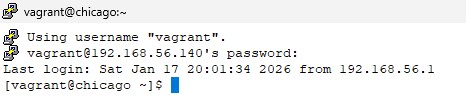
Congratulations. The Sandbox for the Hands on Lab is successfully configured.